
Chromebook Help
-
Where Can I Find My School Login Information
-
How to Return Your School Computer: A Step-by-Step Guide
Thank you for being a part of our school. We have outlined the simple and necessary steps for returning your computer below. Please read this guide carefully to understand the steps you need to take.
When Should I Return My School Computer?
You should return your equipment when you begin receiving automatic communications requesting the return of school equipment. This can happen for any of the following reasons:
- Graduates: If you have successfully graduated or completed your school’s program, kindly return the school computer.
- Student withdrawal from school: If you do not plan to continue your studies at our school, please return the computer to complete your withdrawal and help us quickly provide the computer to another student who needs it.
- Computer Damaged beyond use: If your computer is no longer functional or severely damaged, please return it so that the appropriate repairs or disposal can be completed.
- Using your own device: If you do not have a further use for a school computer and are choosing to use your own device, please return the computer to help us provide it to other students in need.
- End of useful life: If your current computer is at the end of its useful life and you will be receiving a new computer, please return the old device so that it can be refurbished or recycled responsibly.
Reminder: Computers and other school equipment are government property and need to be returned promptly. Your assistance in returning the equipment is highly appreciated!
Which Equipment Should I Return?
The communications you receive will list the specific hardware equipment, along with their serial numbers, that needs to be returned.
- Always return all power cords with the hardware.
- Please note that keyboards, mouse, and headphones should not be returned unless they are new, have never been used, and are in their original packaging.
How Do I Receive Return Communications and Labels?
When it is time to return your equipment, a return request and shipping label link will be automatically sent to your Parent/Guardian email address.
If you have not received the email with the return label, please check your SPAM folder for an email from American School Supply Company. Please allow approximately 1 business day to receive the email and 10-12 business days to receive the mailed letter.
Understanding Return Labels
- E-labels sent to you via email do not have an expiration date; however, each label has a unique tracking number that can only be used once.
- Do not return your book materials with your school computer. Computers and course materials are returned to different locations.
How Should I Pack My School Computer?
To facilitate the return process, we recommend using the original box in which the computer equipment was shipped. This will ensure easier and more secure packing. However, if you no longer have the original box, you can acquire a similar laptop-sized box from various stores such as UPS, FedEx, USPS, Postal Service Centers, or consider checking with big box stores for free boxes.
It is important to use packing materials like bubble wrap or newspaper, to secure the computer equipment safely within the box. This will help prevent any damage during shipping. Please ensure that the box is securely sealed on the exterior using packing tape. For smooth processing, attach the shipping label to the outside of the box so it is clearly visible.
By following these packing guidelines, you can help ensure the safe and secure return of the school equipment.
Where Should I Drop-Off My Computer?
- Please box up your equipment securely and attach the Computer Return Label to the package.
- Find the nearest UPS drop-off facility by visiting Find a Location.
- Take your boxed equipment with the attached Computer Return Label to the drop-off facility.
It is important to follow these steps to prevent any delays or complications. If you have any questions or need assistance, please contact our support team at 1.833.426.7457.
We appreciate your cooperation in returning your school computer. Your prompt action will help our school and allow us to provide computers to other students in need.
Thank you for your support!
-
Connecting your School Device to Wi-Fi
Download PDF for step-by-step
-
Chromebook Lost Or Stolen
Lost Chromebook
If your school provided Chromebook was lost, contact AMP Support as soon as possible and provide the following information:
- Last known location
- Last time you logged into the Chromebook
The AMP Support team will try to track the Chromebook and follow up with your parent/legal guardian.
Stolen Chromebook
If your school provided Chromebook has been stolen, contact the local authorities to open a police report. After opening the police report, contact AMP Support and provide the following information:
- Police report number
- Last known location
- Last time you logged into the Chromebook
The AMP Support team will try and track the Chromebook and follow up with the local authorities.
If this did not resolve your request, Chat With Us or Submit A Ticket.
-
Turn On/Off Chromebook Accessibility Features
Click the Chromebook icon on the right to open the steps to turn on or turn off accessibility features.

If this did not resolve your request, Chat With Us or Submit A Ticket.
-
How To Adjust Volume On Chromebook
Method 1 – Use the volume keys on the keyboard
From left to right: Mute, Volume Down, Volume UP Method 2 – Using The Chromebook Menu
- Click the time in the lower right corner
- Slide to the left to turn down or slide to the right to turn up
If this did not resolve your request, Chat With Us or Submit A Ticket.
-
How Do I Clear Cache or Browser History?
You use a browser every day to check your email, attend class and navigate throughout the school. Your browser holds onto information, and over time it could cause problems with logging in or bringing up websites. It’s always a good idea to clear out the cache, or browser history, and clear cookies on a regular basis. Below you will find links to instructions on how to clear your cache and browser history for Chrome, Firefox, Edge, and Safari. To open the instructions, click the icon of the browser you are using.
Chrome
Firefox
Safari
Edge
If this did not resolve your request, Chat With Us or Submit A Ticket.
-
Microphone Not Working
If you are experiencing an issue with your microphone during class or live conferences, try the following troubleshooting steps before contacting technical support:
- Make sure your volume is turned up.
- Clear your browsing data.
- Restart the computer.
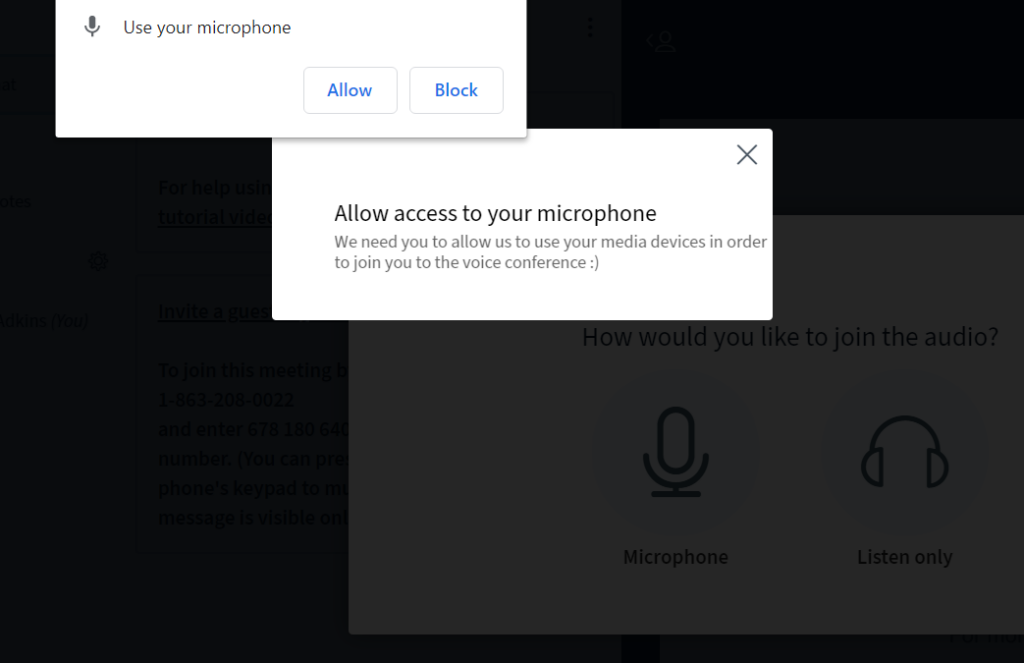
- Grant access to your microphone by clicking “Allow” when prompted. See Figure 1 below.
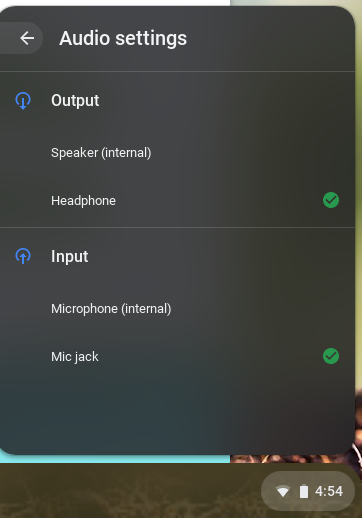
Figure 1 – Allow Microphone 5. If you are using headphones, make sure you have headphones selected under Input settings. See Figure 2 below.
Figure 2 – Chromebook Audio Settings If this did not resolve your request, Chat With Us or Submit A Ticket.
-
I Cannot Access Certain Websites On My Chromebook
To help ensure the safety of our students, families, teachers, and staff we have blocked certain websites from being accessed when using school provided Chromebooks. The following list provides you the categories of the types of websites that are blocked:
- Academic Dishonesty
- Aggressive Behavior Includes 5 subcategories
-
- Weapons
- General Aggressive Behavior
- Intolerance & Hate
- Violence
- Guns
-
- Controlled Substances Includes 4 subcategories
-
- Drugs
- Alcohol Sale
- General Controlled Substances
- Tobacco
-
- Entertainment Includes 7 subcategories
-
- General Entertainment
- Celebrity Gossip
- Movie Tickets
- Movies and Television
- Audio/Video Downloads
- Magazines
- Radio
-
- Games Includes 4 subcategories
-
- Online Games
- General Games
- Gaming Information
- Gambling
-
- Malicious Sites Includes 11 subcategories
-
- General Malicious Sites
- Phishing
- Hacking
- Proxy
- Piracy
- Fraud
- Spam
- Adware
- Dialers
- Spyware
- Infected Sites
-
- Pornography
- Religious
- Sexual Includes 3 subcategories
-
- Nudity
- Sexuality
- General Sexual
-
- Shopping Includes 5 subcategories
-
- Clothing
- General Shopping
- E-commerce
- Online Auctions
- Cell Phones and Add-ons
-
- Social Includes 6 subcategories
-
- Dating
- Instant Messaging
- General Social
- Blogs
- Chat Rooms
- Social Networking
-
- Time Wasting Includes 6 subcategories
- Manga
- General Time Wasting
- Humor
- Web Comics
- Photography
- Fan Fiction
As a reminder, the use of school provided laptops is for attending school and completing schoolwork. They are not setup to use as a typical laptop you purchase from a store. The Chromebooks are monitored 24 hours a day and any misuse is reported to the School Administration Office. If there is a educational need to unblock a certain website, please submit a ticket and the Principal will review the request and provide you with a response.
If this did not resolve your request, Chat With Us or Submit A Ticket.
-
Chromebook Shortcut Keys
In this article, you will find a list of keyboard shortcuts for your Chromebook that you may find useful:
Alt + Clicking the touchpad Right-click menu Ctrl + Alt +Z Enable ChromeVox Ctrl + T Opens a new tab Ctrl + C Copy selected text or image Ctrl + V Paste what was recently copied Ctrl + Z Undo the last change you made Ctrl + ++ Zoom in Ctrl + — Zoom out Ctrl + Show windows Take a screenshot Hold Power button for 3 seconds Log out, save work, and power down If this did not resolve your request, Chat With Us or Submit A Ticket.
-
Updating Your Chromebook
- Log into the Chromebook and launch the Chrome browser.
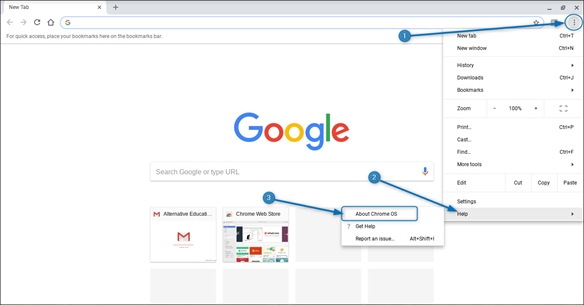
- Click on the 3 dots in the upper right-hand corner. Then click “Help” at the bottom of the menu, and finally, click on the “About Chromebook OS”
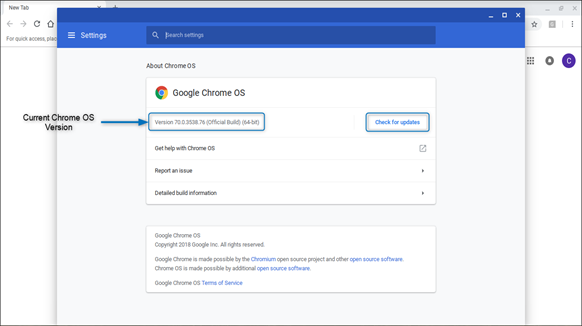
- You will see your current version of the Chrome OS, which for testing needs to be on the current version. Click the “Check for updates” button on the right.
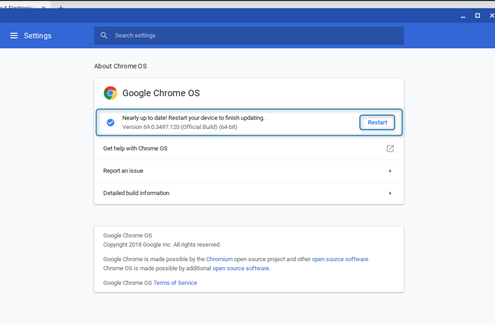
- Once it has finished updating you will be required to restart the device. Click on the “Restart” button. After the restart, your Chromebook will have the latest version of Chrome OS.
If this did not resolve your request, Chat With Us or Submit A Ticket.
-
How To Adjust Screen Resolution On Chromebook
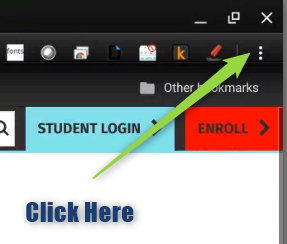
First, click the 3 dots in the upper right corner of Google Chrome
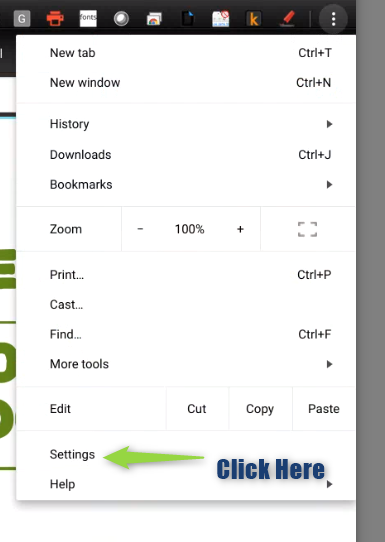
Then click settings
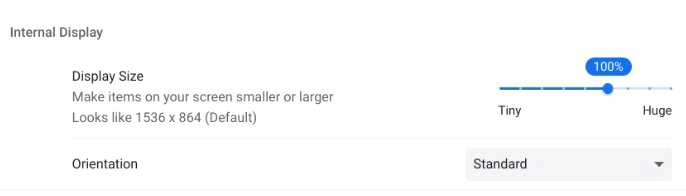
Scroll down the setting page until you see Displays, and click Displays
Move the blue slider bar until is had 100% above it.
-
How To Login On Your First Day Of School
IMPORTANT: CHECK PARENT/LEGAL GUARDIAN PERSONAL EMAIL INBOX FOR CREDENTIALS (STUDENT LOGIN INFORMATION). Double check your spam folder.
1. To access your Course Dashboard,
- Go to your school website and click on Student Login, top right-hand corner.
2. Click on the course named “Orientation” on your first day of school, not prior to first day of school. if you are logging in before, you will not see this course card.
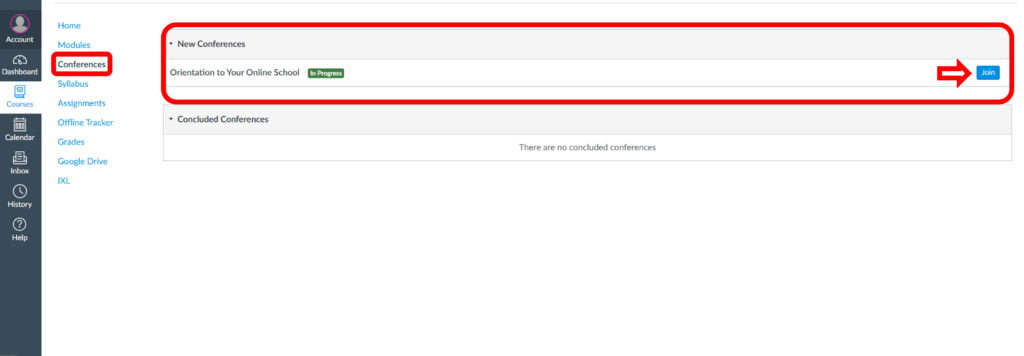
3. After you enter the Orientation course, (a) Click on Conferences on the left navigation menu (b) Click Join
Your Orientation Live Conference Session will be held on your first day of school. Please plan to have parent and student attend this session.
OR
You may choose to do this by watching a Recorded Advisor Orientation Session. This recording will help you understand how to access and navigate your coursework, how to connect with your teachers, and how to access daily live conference sessions.
Once you complete your orientation, you will have the knowledge and confidence to begin your online school journey. After your orientation is complete, you will see the following in your Course Dashboard
- Courses and/or Electives- varies by grade band
- Homeroom course
- Orientation course will be available to you for future reference
If this did not resolve your request, Chat With Us or Submit A Ticket.
-
Exploring Your School Chromebook
If this did not resolve your request, Chat With Us or Submit A Ticket.
-
Resetting Your Initial Password
How to change your initial password provided by your school’s staff.